Navigate to Settings and select Apps.
Then tap Teams and go to Manage battery usage.
Toggle on Allow Background Activity.

Close the app and then launch it again. Check if the alert went away.
Fix notification issues in the Teams Android app
Teams for Mobile may sometimes inform you the notifications aren’t working properly because the app’s background activity has been restricted. This indicates that certain system settings may restrict Teams notifications. Let’s explore how you can tweak your phone settings so that you can get all the Teams notifications on your Android phone.
The quickest way to get rid of this error is to allow Teams to run in the background.
Navigate to Settings and select Apps.
Then tap Teams and go to Manage battery usage.
Toggle on Allow Background Activity.
Close the app and then launch it again. Check if the alert went away.
On the other hand, the steps to follow are a bit different if you own a Samsung Galaxy J7 Star phone and you’re running Android version 9. You need to go to Settings → Apps → Teams → Usage → Battery → Allow background activity. If you tap directly on Battery, you won’t find the option you’re looking for.
Alternatively, if this option is not available on your phone, you can tweak your power management settings.
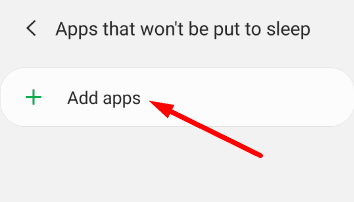
As you can see, the steps to follow may be different depending on your phone model and Android OS version. For more information, see Fix notification issues in the Teams Android app.
This first solution should fix the problem for most users. However, if it persists, continue with the troubleshooting methods below.
Ensure all those temporary files stored under the app cache are not interfering with your notifications.